Capture the Flag: Linux, web, hidden flags, hash cracking and Nmap
A seven-part TryHackMe CTF worked end to end: Linux user management, file system and web flags, steganography-style hidden flags, hash cracking, and an Nmap scan report with remediation.
- Case
- OG-2023-01
- Date
- Category
- CTF
- Tools
- Linux, SSH, Nmap, John the Ripper, Hashcat, Browser DevTools
context: written for the Masterschool cybersecurity program, against an isolated lab target. Published as written at the time.
Introduction
This report provides an overview and analysis of the Cybersecurity Capture The Flag (CTF) project. The project focuses on testing and enhancing cybersecurity skills through a series of challenges and scenarios. Participants are tasked with identifying vulnerabilities, exploiting systems, and uncovering hidden flags within a controlled environment.
The objective of the CTF project is to simulate real-world cyber threats and provide hands-on experience in securing systems and networks.
Linux Basics: User and File Management
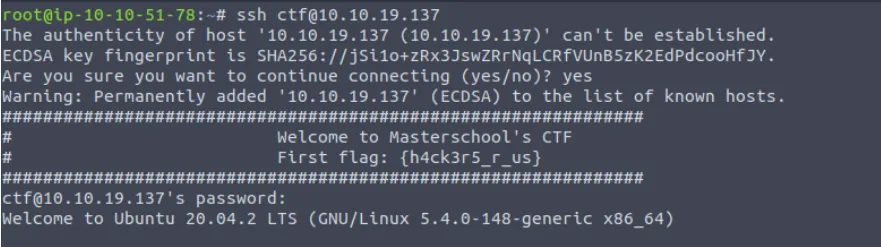
- User Creation: In my attack machine, I used SSH to get in the Masterschool CTF machine. The CTF login and username were given, command on attack box to get in ctf machine is *ssh ctf@<machine_IP> *
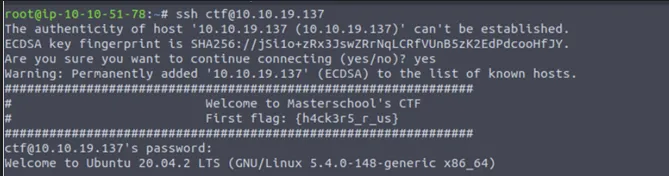
User ctf is not a root, therefore he is unable to create the user. Checked .bash_history and found user executed user add. The action is still recorded under sudo, so we can add this user with *sudo adduser a. *Gave the new user password.
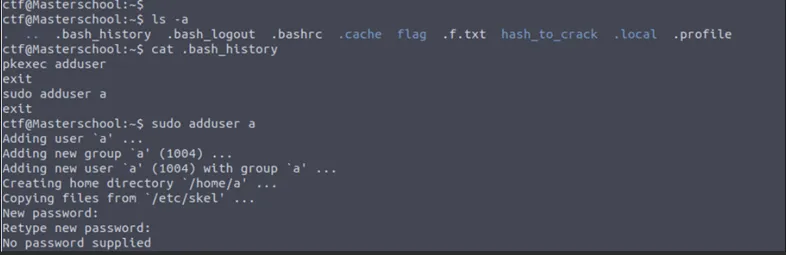
- User switch: I used command *su-l
*(Username in this case is “a”) to login with shell so we can get full access to the environment. - Folder and File Creation: I used mkdir <directory_name> to make directory, cd
to move into the directory just created, and *nano *to make file inside the directory. I wrote in nano mode “Hello from a” and used CTRL+S to save the nano and CTRL+X to exit nano mode - Switch Back to Original User: I used command *exit *to switch back to user ctf (original user)

File System Flags
- First flag:
{flag redacted}
Found flag when you first ssh into ctf account on machine.
- Second flag:
{flag redacted}
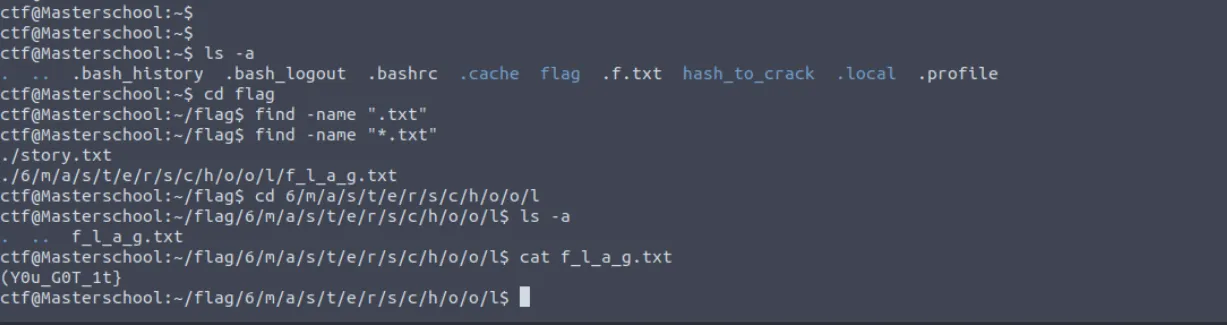
Found flag inside hidden file .f.txt on ctf account. I used ls -a command to show hidden files.

- Third flag:
{flag redacted}
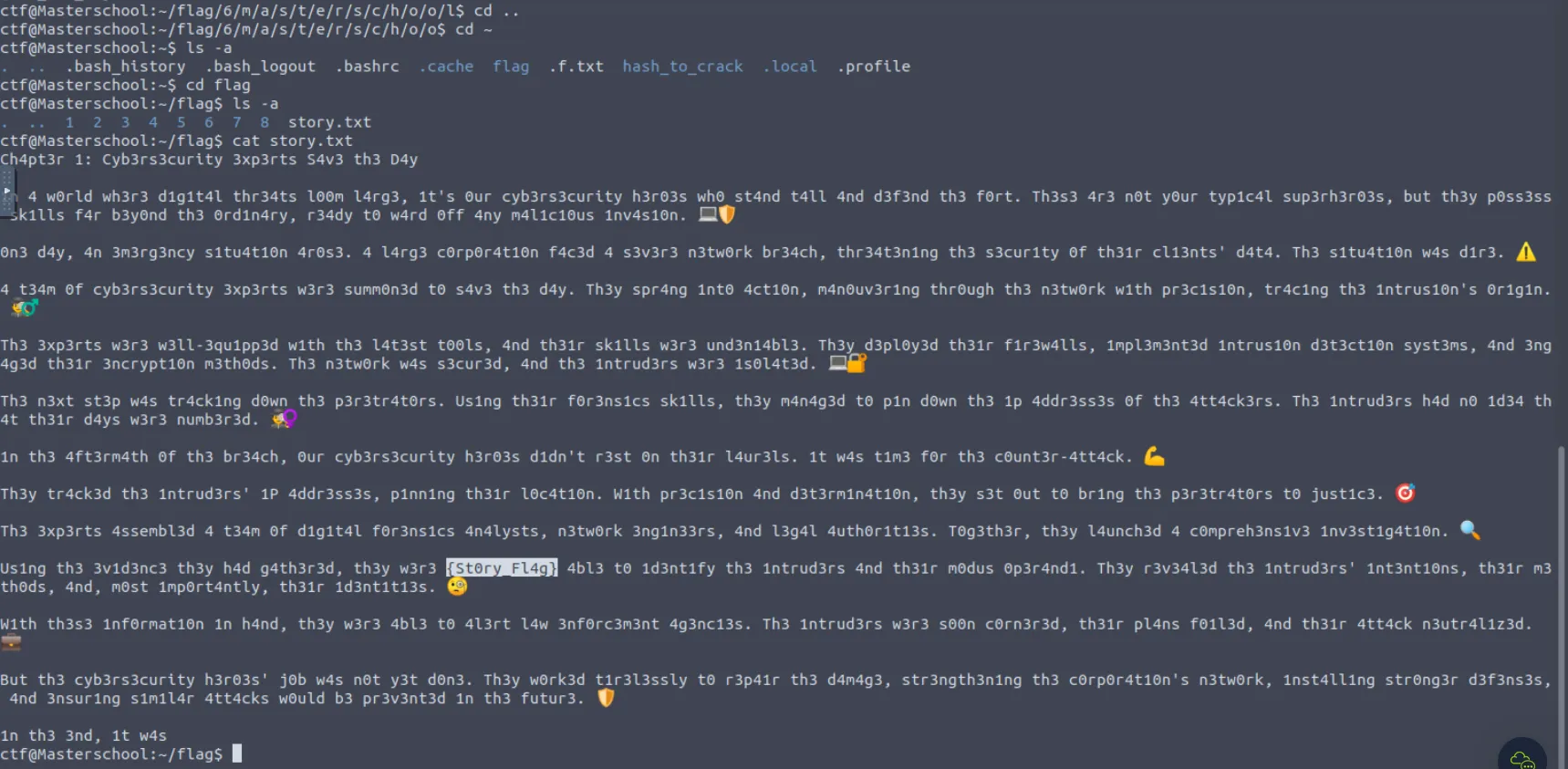
Used deductive reasoning. The flags are usually hidden in a .txt file. I used cd flag to get in flag directory. Then ran find command on any file that is a text file: find -name “.*.txt”* *I got two output. I found a directory inside multiple directories that leads to *f_l_a_g.txt *
I went into the multiple directories using *cd 6/m/a/s/t/e/r/s/c/h/o/o/l *
- Fourth flag:
{flag redacted}
Remember that I got two text file when we did the find. Now I go inside the *./story/txt * I read the story, and inside the story, the flag was hidden in it.
Webpage Flags
I hopped back on my attack machine and ran an nmap scan to see which web port was open using *nmap <ctf_machineIP> | grep open 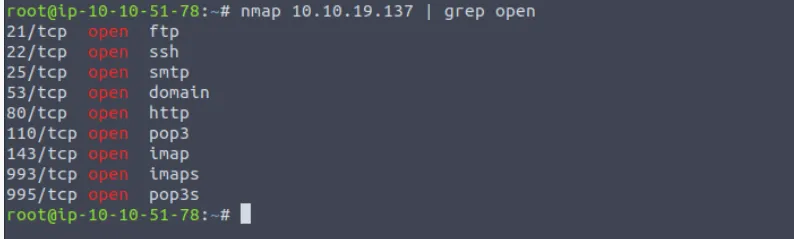
Now that we see that http port 80 is open, I open a web page usinghttp://<ctf_machineIP>*
- First flag:
{flag redacted}
This was the welcome page when you go on the website.
- Second flag:
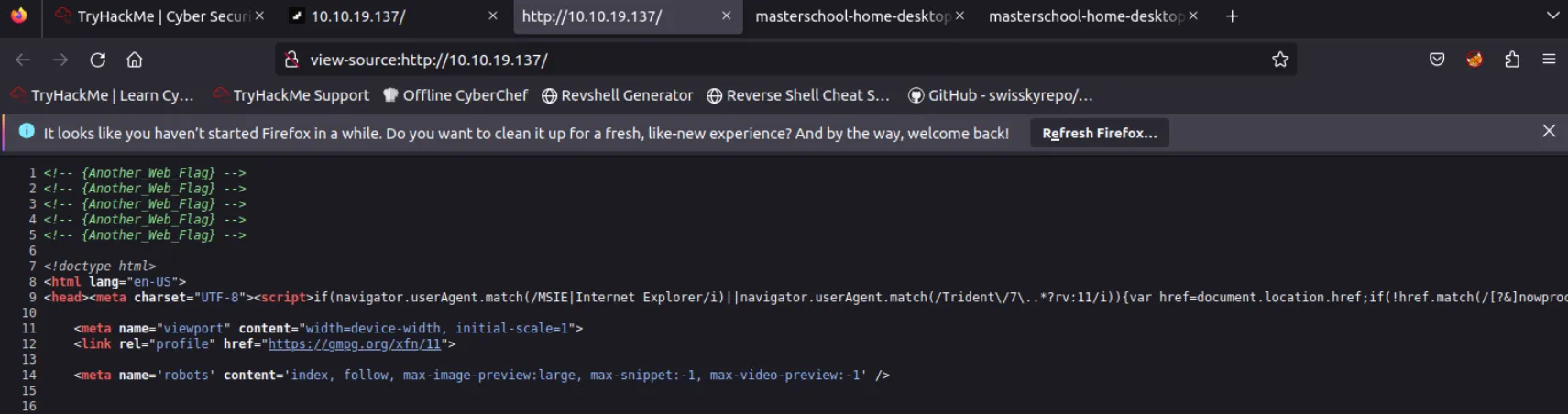
{flag redacted} - Third flag:
{flag redacted} - Fourth flag:
{flag redacted} - Fifth flag:
{flag redacted} - Sixth flag:
{flag redacted}
Found some of the flags on the webpage, I right clicked and chose “View page source”
Hidden Flags Challenge
Since I already ransacked the whole file, it is not bound to be in files anymore. Now I am looking into vulnerabilities and other logs.
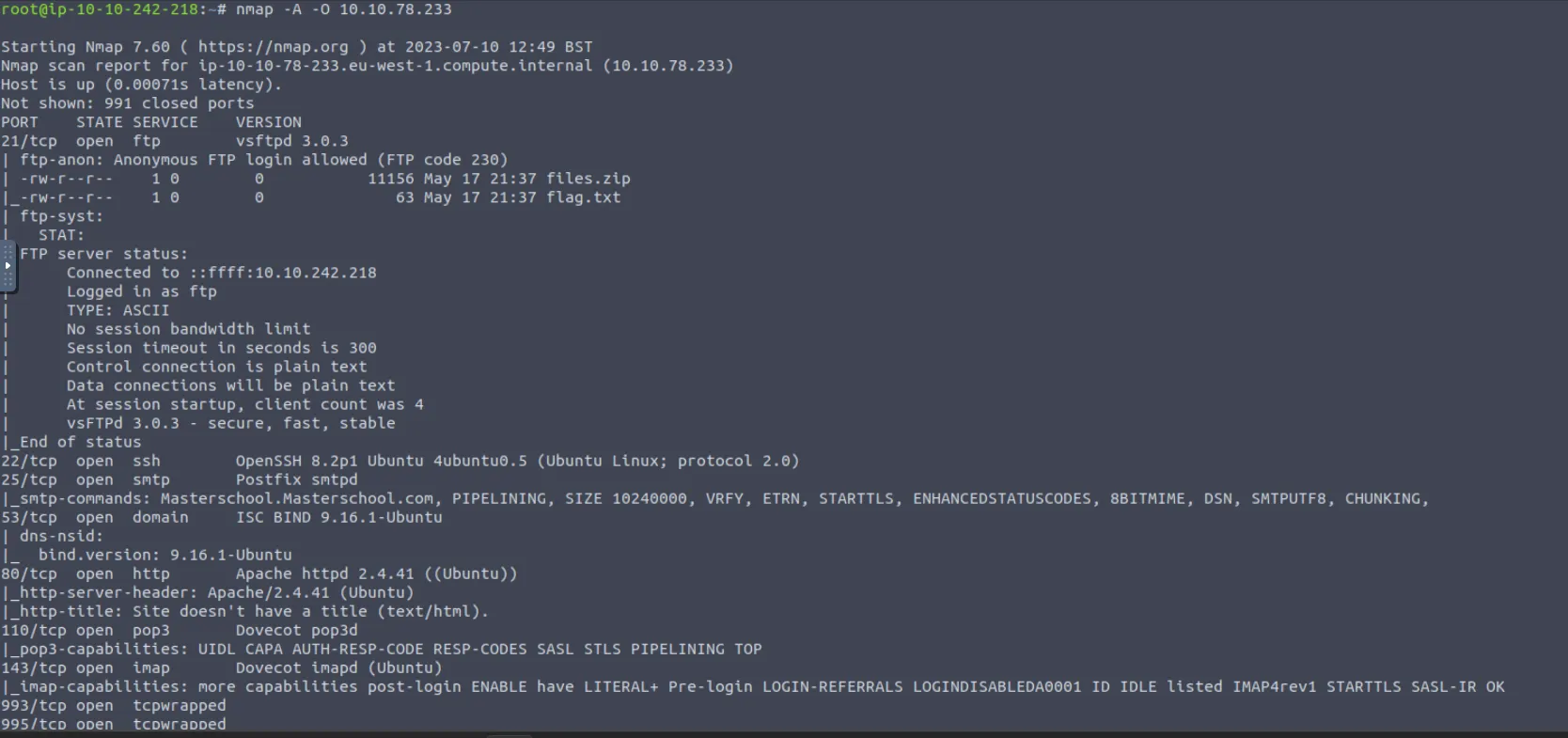
I ran a detailed nmap scan on my attack machine to find vulnerabilities/open ports on the ctf machine using nmap -A -O
- First flag:
{flag redacted}
This was found from ftp login. With the scan above, I saw that ftp allows anonymous login. On attack machine, I logged in with command ftp
Checked for files on it using ls -a and found two named “flag.txt” and “files.zip”
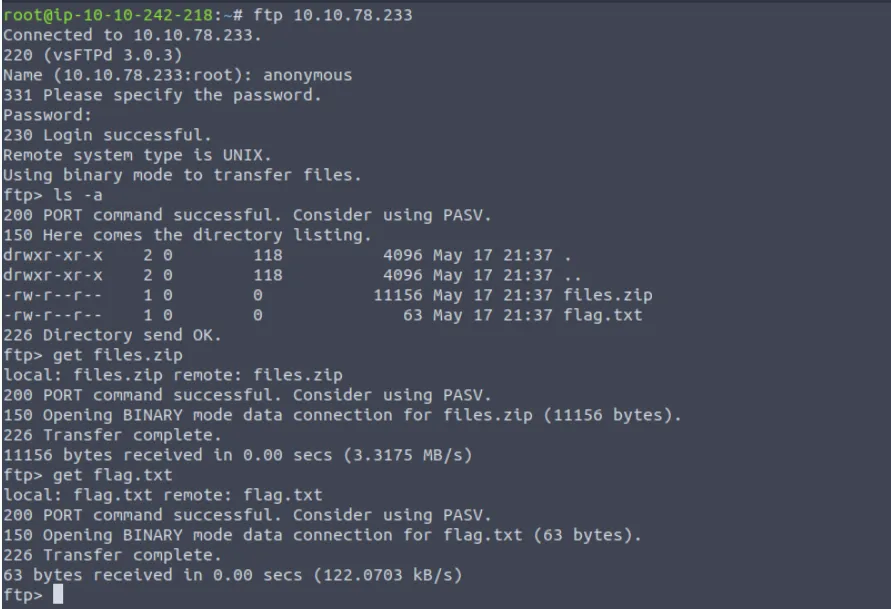
I used get command to download text file and zip file to my attack box. On my attack box, I opened up the flag.txt and got the first hidden flag.

- Second Flag:
{flag redacted}
Next is to open the zip file. The zip file is password protected but we got a hint from flag.txt that we should know the password. After multiple combinations, “Masterschool” password worked. I opened the files.zip and found another zip file in it. This time, we have a wordlist with it.
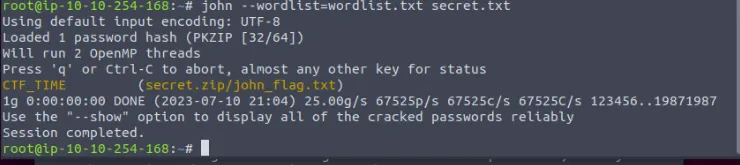
I used zip2john to convert the secret.zip to secret.txt

zip2john files.zip > secret.txt
I ran john against the hash I got with the downloaded wordlist.
Now I will begin to look inside of important directories such as /etc, /var, /usr, /proc, /bin, /sbin, /tmp, /mnt, /lib, /home, /root, /srv
In Var directory, I used find -name “*.txt” and got a list of text files in the directory.
- Third Flag:
{flag redacted}
Found in /var/backups/find_flag.txt

- Fourth Flag:
{flag redacted}
Found in /var/www/html/secret.txt

- Fifth Flag:
{flag redacted}
Found in /var/www/html/robots.txt

- Sixth Flag:
{flag redacted}
Found in /var/www/html/flag/flag/flag.txt

Hash Cracking
In the ctf machine, from previous exploitations that I did, I know that the hashes are inside a directory called “hash_to_crack” In order to be able to crack the hash, I need to get it inside my attack box by using source and destination command *scp -r 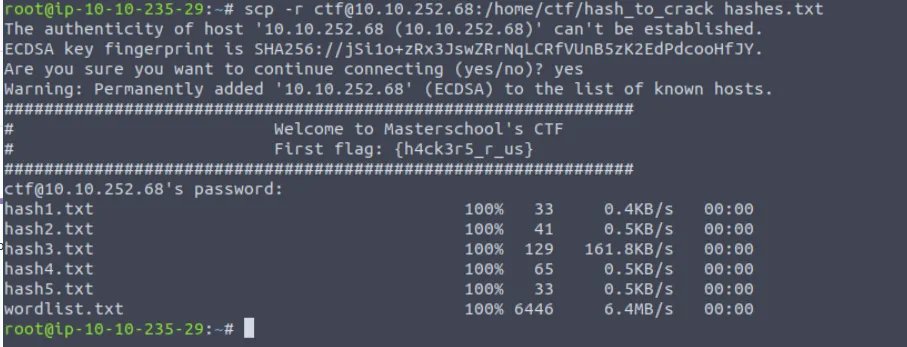
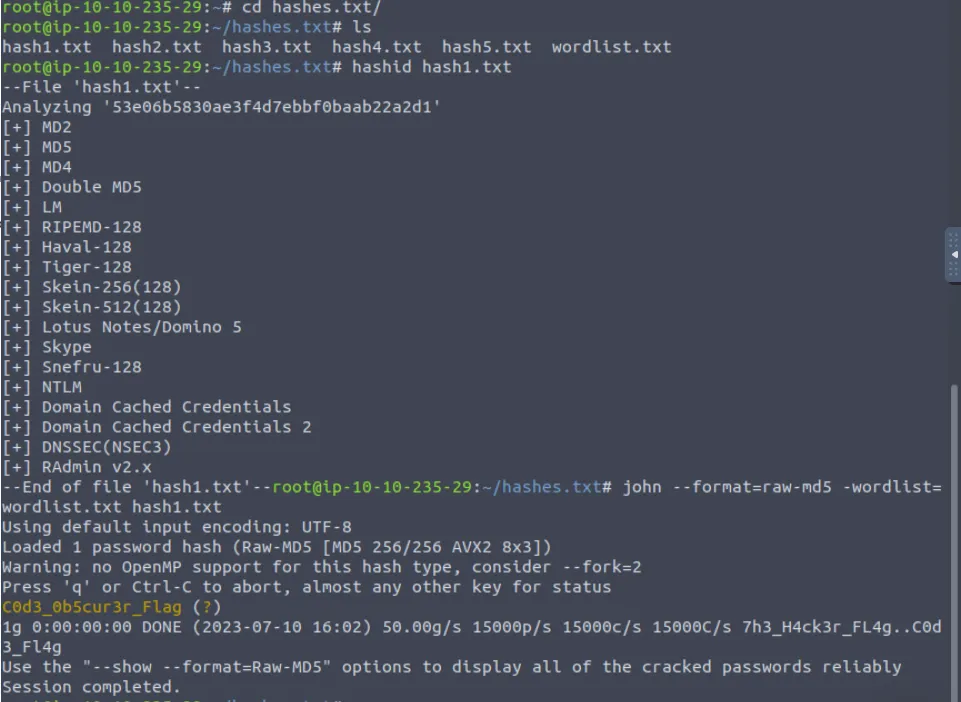
I then installed hashid usingsudo apt-get install hashid -y *
*cd *into “hashes.txt” and ran hashid hash1.txt to get the hash format for john.
Ran *john --format=raw-md5 -wordlist=wordlist.txt hash1.txt *to crack the first hash.
- First Flag:
{flag redacted} - Second Flag:
{flag redacted}
Found by running hash id to find the hash format and then john against the second hash. Follow the same process to crack hashe3, 4, and 5.
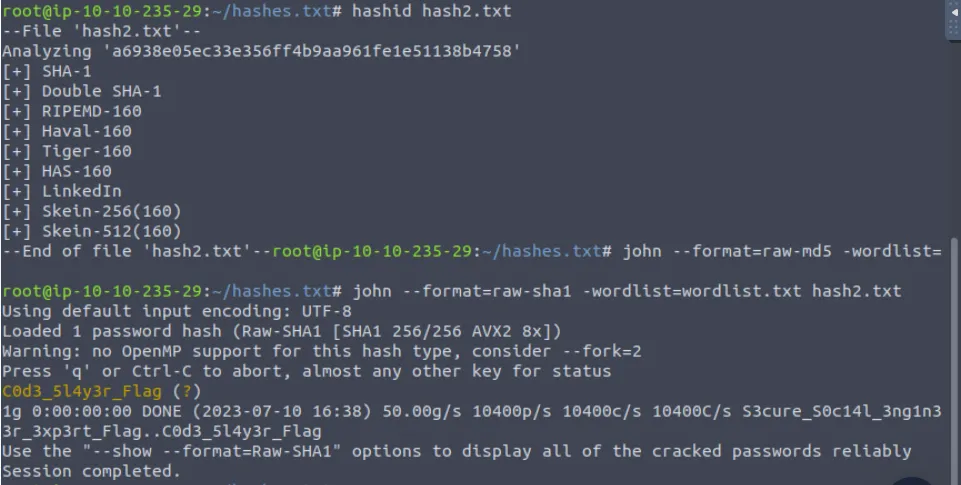
- Third Flag:
{flag redacted}
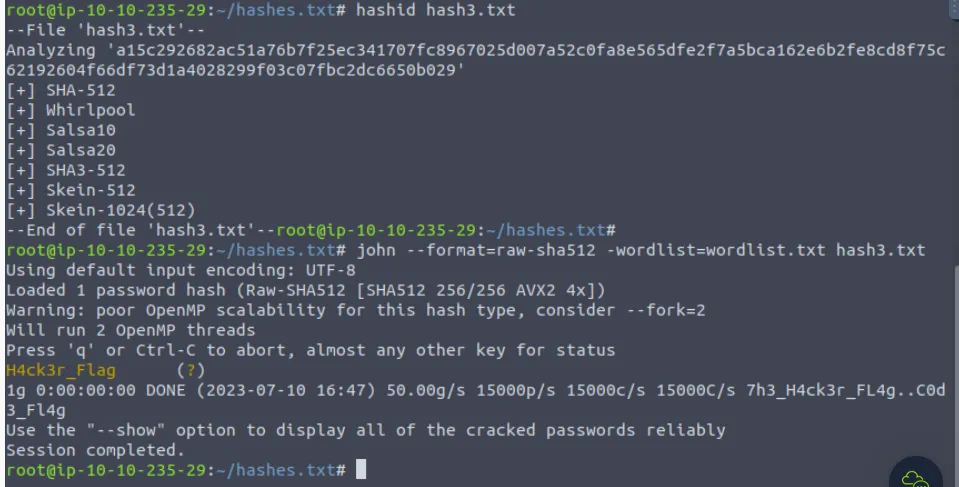
- Fourth Flag:
{flag redacted}
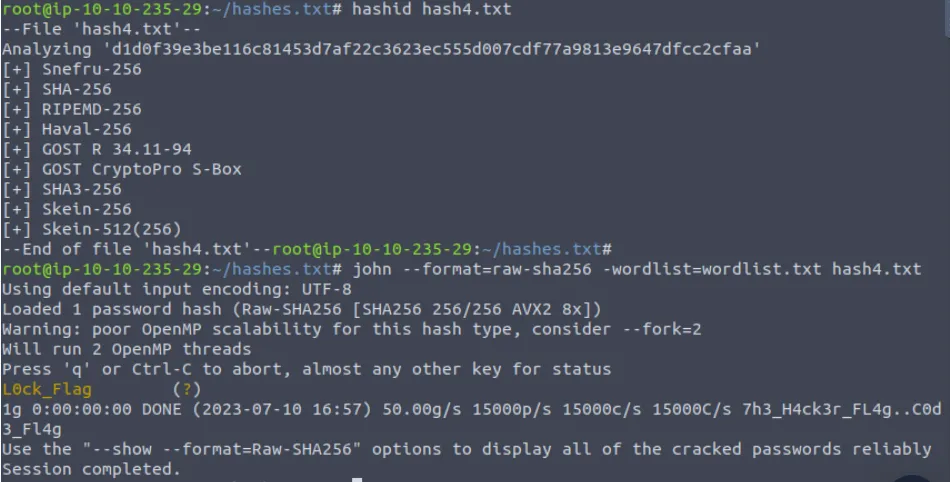
- Fifth Flag:
{flag redacted}
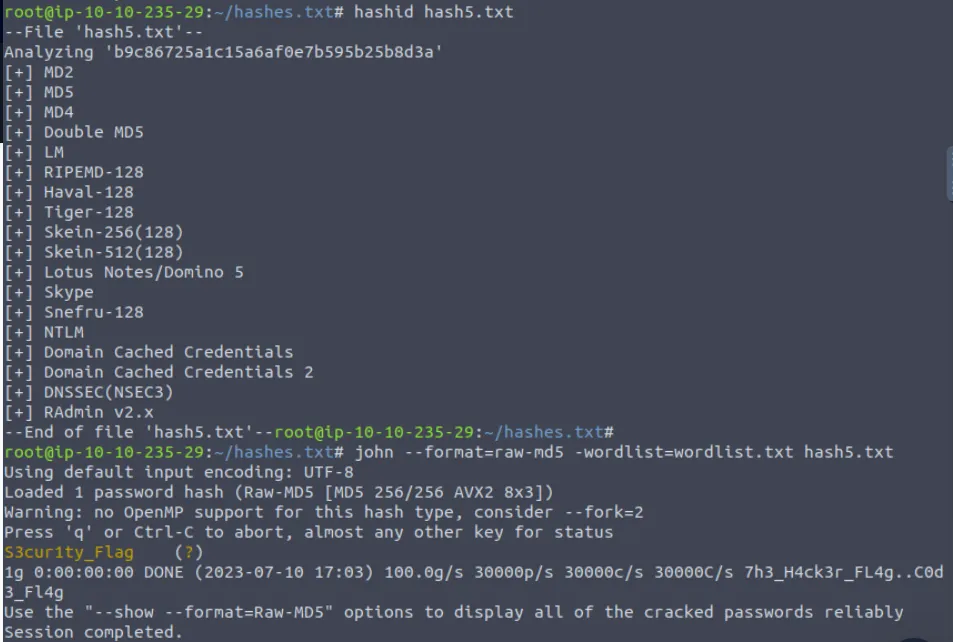
NMAP Scan Report
I ran a detailed nmap scan with *nmap -A -O <ctf_machineip> *
Nmap performs a scan with aggressive options such as OS detection, against the ctf machine. It gathered information about the target’s open ports, services, and operating system.
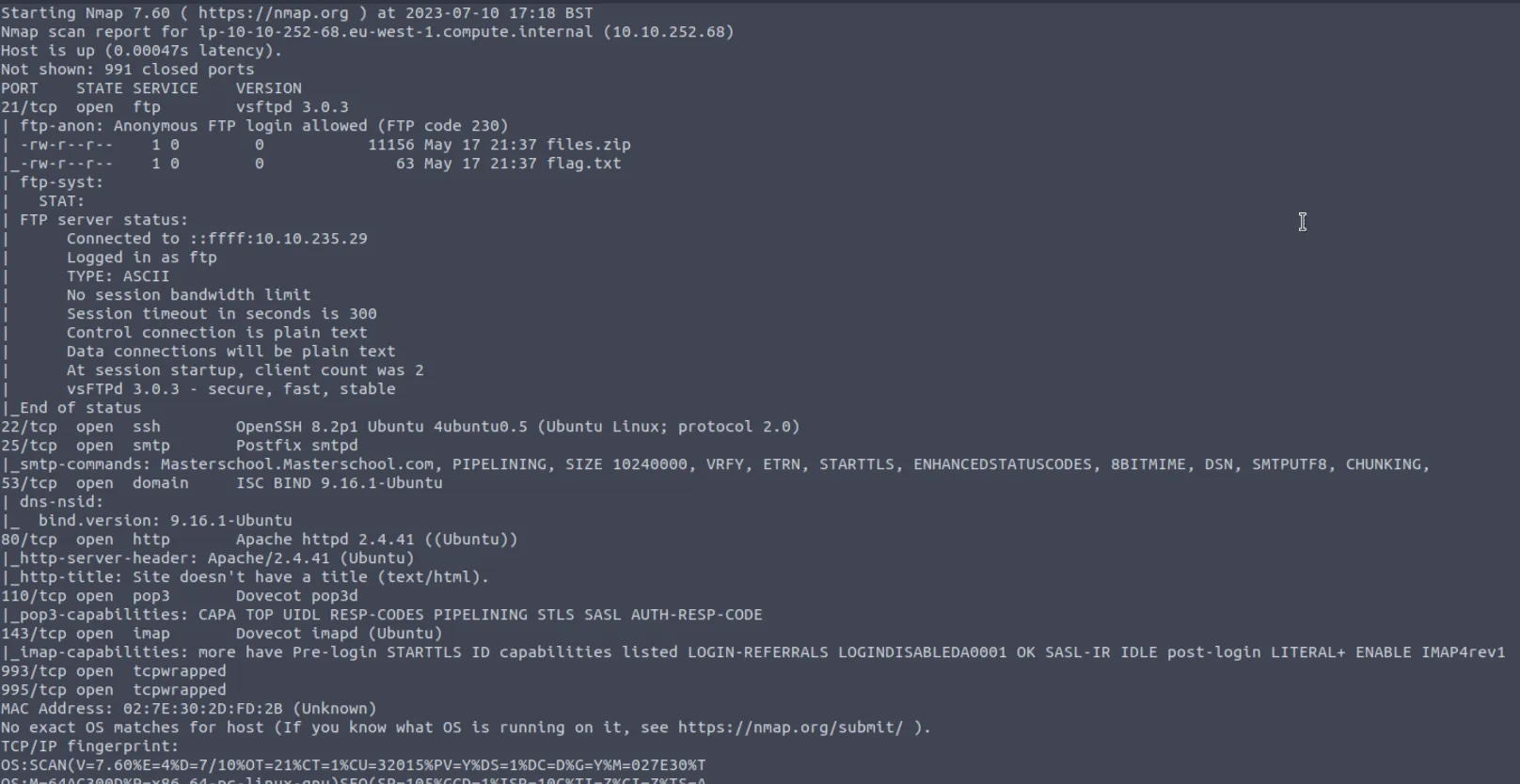
- Host information:
IP Address: 10.10.252.68
Hostname: ip-10-10-252-68.eu-west-1.compute.internal
MAC Address: 02:7E:30:2D:FD:2B
Host: Masterschool.Masterschool.com
- Open Ports and Services:
- Port 21/tcp: Open FTP port running vsftpd 3.0.3
- Anonymous FTP login is allowed, indicating potential data exposure
- Files identified on the FTP server: “files.zip” (size: 11,156 bytes) and “flag.txt” (size: 63 bytes)
- Port 22/tcp: Open SSH port running OpenSSH 8.2p1 Ubuntu 4ubuntu0.5
- Port 25/tcp: Open SMTP port running Postfix smtpd
- Supports various SMTP commands including PIPELINING, STARTTLS, and CHUNKING
- Port 53/tcp: Open DNS port running ISC BIND 9.16.1-Ubuntu
- DNS server version identified as 9.16.1-Ubuntu
- Port 80/tcp: Open HTTP port running Apache httpd 2.4.41 (Ubuntu)
- Port 110/tcp: Open POP3 port running Dovecot pop3d
- Supports various POP3 capabilities including TOP, UIDL, and SASL.
- Port 143/tcp: Open IMAP port running Dovecot imapd (Ubuntu).
- Supports various IMAP capabilities including STARTTLS and IDLE.
- Port 993/tcp: Open port, possibly running a service that is wrapped in a secure layer (e.g., SSL/TLS).
- Port 995/tcp: Open port, possibly running a service that is wrapped in a secure layer (e.g., SSL/TLS).
Potential vulnerabilities and solutions
- Anonymous FTP Access (Port 21/tcp): The FTP server allows anonymous logins, which could potentially lead to unauthorized access or data leakage. The files “files.zip” and “flag.txt” are accessible, indicating the need for securing FTP access and evaluating the contents of these files for sensitive information. FTP sends data in plaintext; it is best not to be used.
- OpenSSH (Port 22/tcp): The OpenSSH version 8.2p1 Ubuntu 4ubuntu0.5 is running. Ensure that the SSH service is properly configured with strong authentication and encryption settings to prevent unauthorized access.
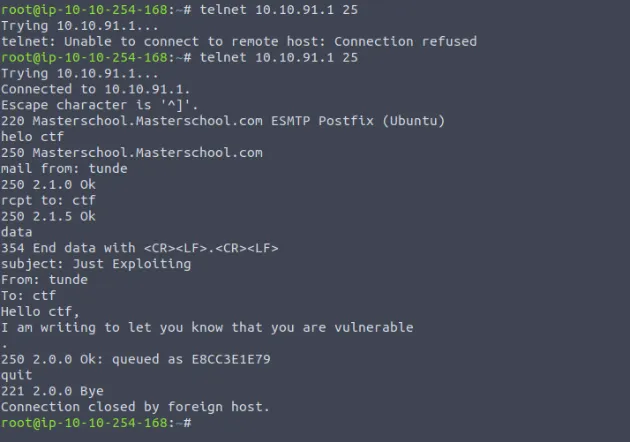
- Postfix SMTP Service (Port 25/tcp): The Postfix SMTP service is running, supporting several SMTP commands and extensions. Regularly apply security updates and follow best practices to protect the SMTP service from potential vulnerabilities and abuse.
- I was able to get on SMTP and send out email. Check screenshot below:
- ISC BIND DNS Server (Port 53/tcp): Best security practice on this is to keep DNS software up to date and follow best practices.
- Apache HTTP Server (Port 80/tcp): Regularly apply security patches, It is best to stay up to date and use HTTPS as HTTP is more susceptible to attacks such as response splitting, and injection attacks
- Dovecot POP3 (Port 110/tcp) and IMAP (Port 143/tcp) Services: The Dovecot POP3 and IMAP services are open. Ensure that proper authentication mechanisms are in place and SSL/TLS is correctly configured to secure email communications. I am unable to exploit these services because plaintext authentication is disallowed. This is good practice.
