Phishing lab: credential harvesting with the Social-Engineer Toolkit
A lab walkthrough of how a credential-harvesting phishing page is built with SET in an isolated environment, to understand what defenders and users are up against.
- Case
- OG-2023-04
- Date
- Category
- Social Engineering
- Tools
- Kali Linux, SET, VirtualBox
context: written for the Masterschool cybersecurity program, against an isolated lab target. Published as written at the time.
Kali Linux Installation
Virtualization: Kali Linux via Virtual Machines Running Kali Linux through virtualization allows you to set up a virtual machine (VM) on your existing operating system. Popular virtualization software like VMware, VirtualBox, or Hyper-V enables you to run Kali Linux as a guest OS alongside your primary OS. This approach is ideal for testing and learning without affecting your main system, providing a safe and isolated environment.
Bare Metal Installation: Dedicated Kali Linux System Choosing a bare metal installation means installing Kali Linux directly on a dedicated computer or as the primary OS on a separate partition. This method ensures maximum system resources and performance, making it suitable for serious penetration testing or cybersecurity tasks. With Kali Linux as the main OS, you have full access to hardware capabilities, allowing for a seamless and powerful experience.
For Virtualization (VMware or VirtualBox):
- VMware Official Documentation: https://docs.vmware.com/en/VMware-Workstation-Pro/index.html
- VirtualBox User Manual: https://www.virtualbox.org/manual/
YouTube Video Tutorials:
- Installing Kali Linux on VMware: https://www.youtube.com/watch?v=WxYY6kbr7J0
- Installing Kali Linux on VirtualBox: https://www.youtube.com/watch?v=l0JgWilK6ok
For Bare Metal Installation:
- Kali Linux Official Installation Guide: https://www.kali.org/docs/installation/
- Dual Boot with Windows: https://itsfoss.com/install-ubuntu-1404-dual-boot-mode-windows-8-81-uefi/
YouTube Video Tutorials:
- Installing Kali Linux on Bare Metal: https://www.youtube.com/watch?v=K8a1ifRlorQ
- Kali Linux Dual Boot Installation: https://www.youtube.com/watch?v=BRk71KypnBg
Walkthrough: Cloning a Google Login Page with SET
Tool Installation
Open Terminal: Launch a Terminal window in Linux.
Clone SET from GitHub:
git clone https://github\.com/trustedsec/social\-engineer\-toolkit/
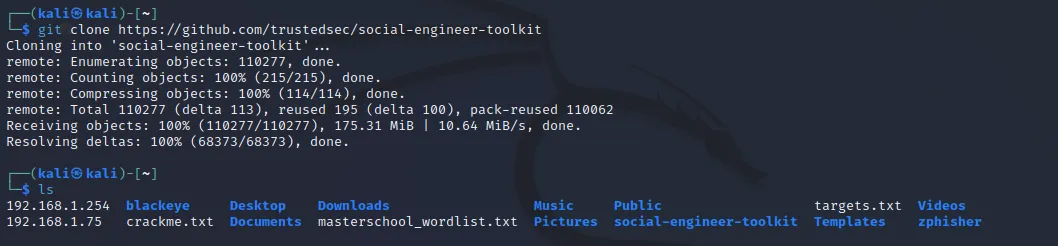
Navigate to the SET Directory: Enter the following command:
cd social-engineer-toolkit
Install SET: Run the installation script with the following command:
sudo python setup.py

Using Social-Engineer Tool
Launch SET: Open a new Terminal window and type the following command to launch the Social-Engineer Toolkit.
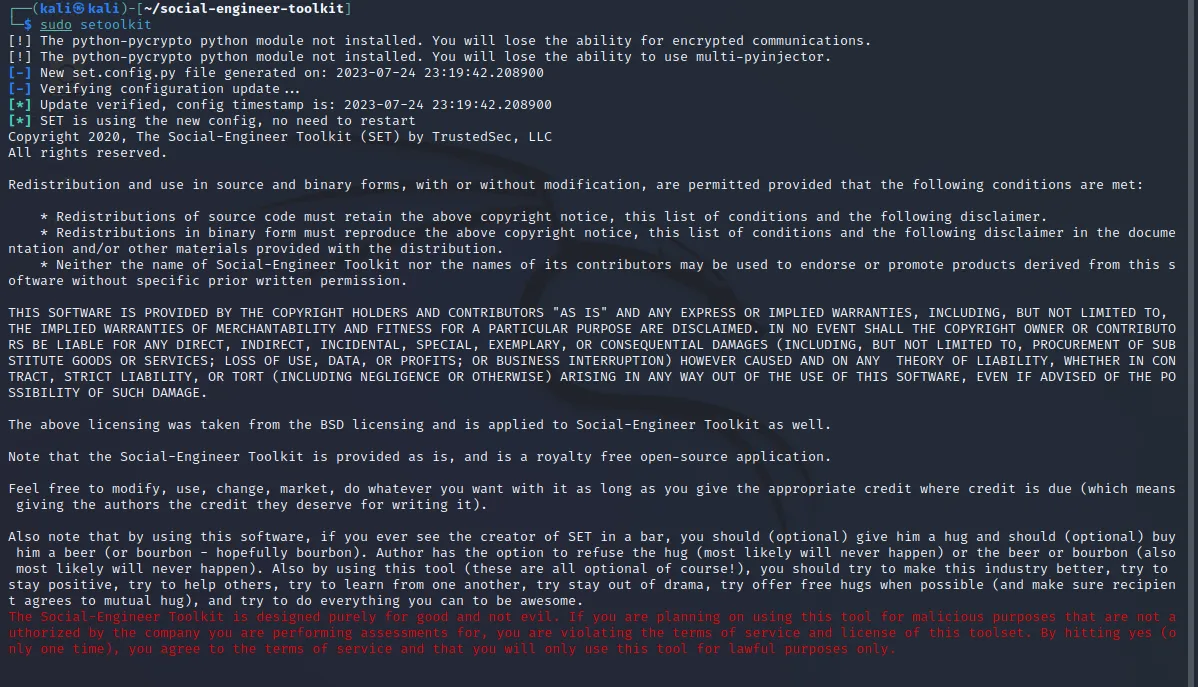
sudo setoolkit
Accept the terms: You’ll be prompted to agree to the terms of service of the toolkit. This is an ethical reminder that the tools should be used responsibly. Type ‘y’ to agree.

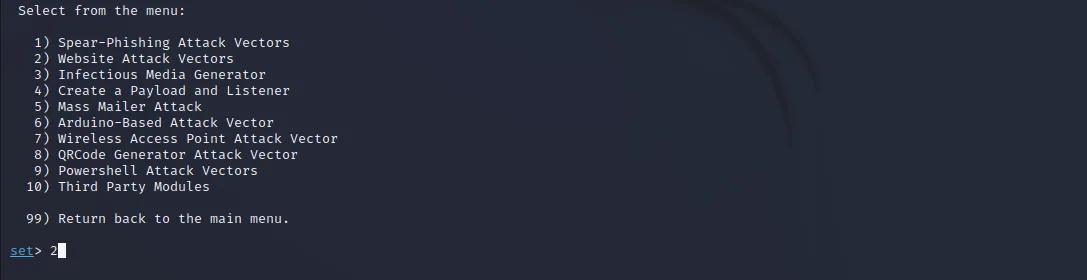
Navigate the SET Menu: You’ll be taken to the main menu of SET. Type ‘1’ to select “Social-Engineering Attacks”. This is the overarching category of attacks that SET specializes in. In the next menu, type ‘2’ to select the “Website Attack Vectors”. These are specific methods for launching attacks via websites. Finally, type ‘3’ to select “Credential Harvester Attack Method”. This method captures user credentials when they interact with the cloned website.
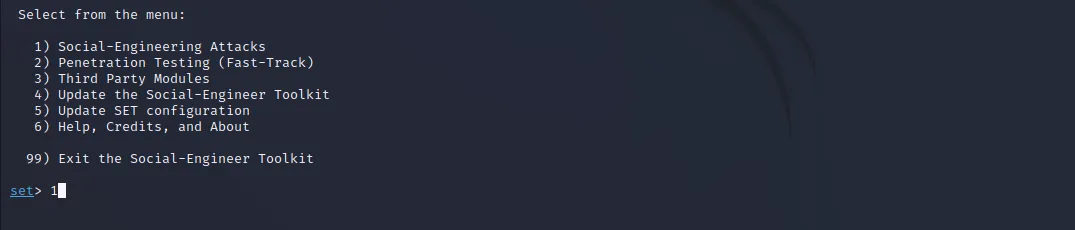
It’s as simple as 1,2,3

Select Site Cloning Method: Once you’ve selected the Credential Harvester Attack Method, you’ll be asked to choose between site cloning and web templates. Site cloning involves duplicating a specific website, while web templates use a pre-made generic site. Type ‘1’ to select “Web Templates”.

Enter IP Address: You’ll be asked to enter the IP address for the post-back in Harvester/Tabnabbing. This is the IP where captured credentials will be sent. Since we are testing it on the same machine, enter 127.0.0.1

Select Template: You’ll be asked to select the site you’d like to clone for the redirect. Choose 2 for google.
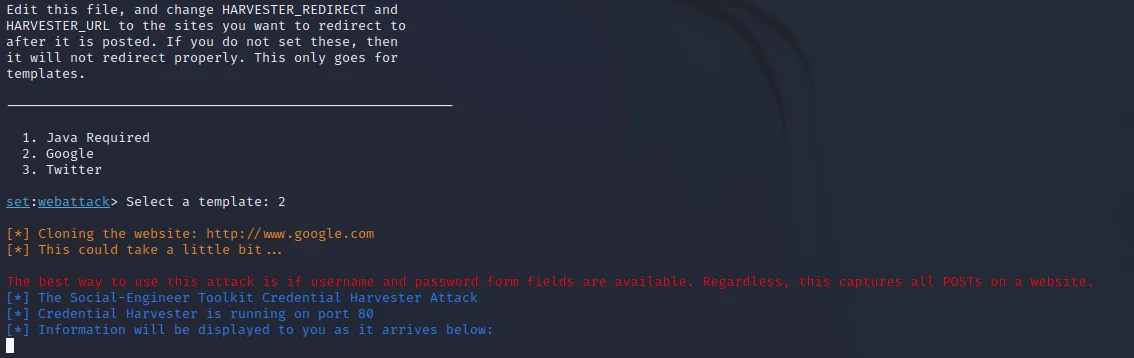
Start the Server: SET will create the cloned site and start the server. The server hosts the cloned site to be visited via a web browser. Note the URL it provides (It should look something like http://127.0.0.1)
Testing Your Cloned Site
Open Firefox: On your Linux machine, open the Firefox browser.
Enter the SET URL: Type the URL provided by SET in the address bar of Firefox. This will take you to your cloned Google login page. The goal is to see if the page convincingly resembles the real site enough to trick an unsuspecting user.
Enter Test Credentials: Type any email and password combination into the fields on the cloned site. Since it’s a test, you can use fake information.
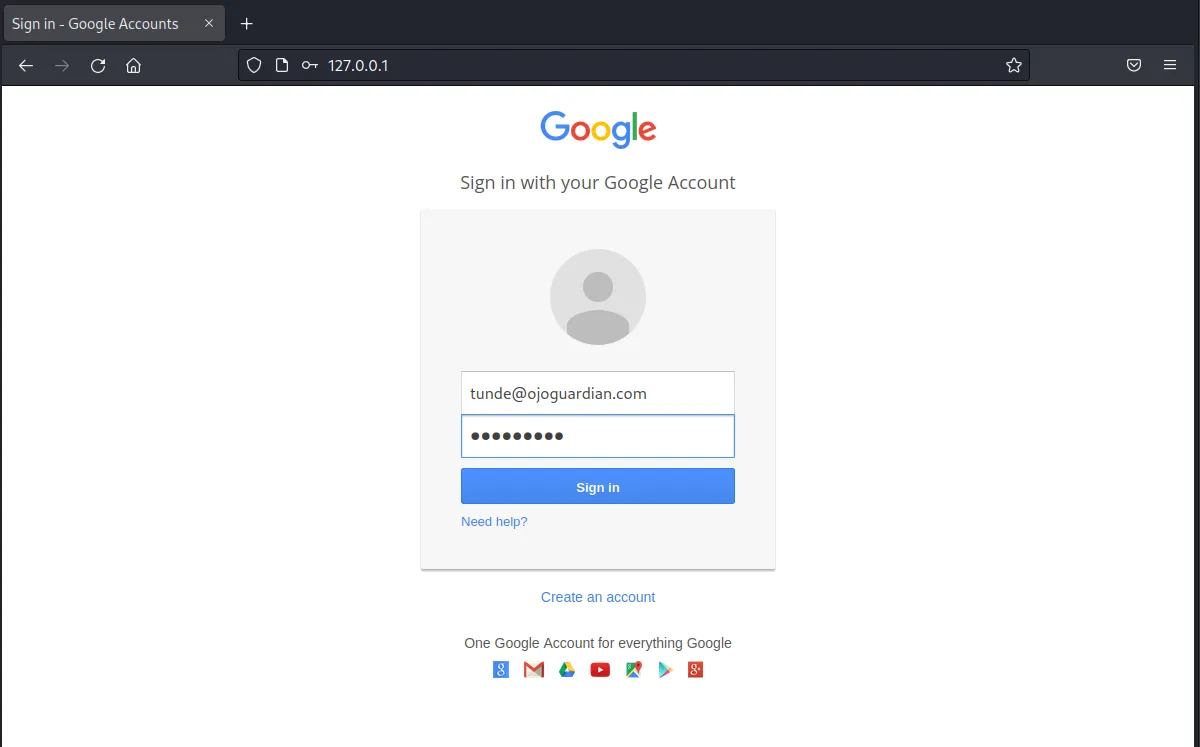
Check the Terminal: Return to the terminal where SET is running and look for the credentials you just entered. SET should have captured and displayed the input credentials if everything works correctly.

Disclaimer
This test aims to understand better how these attacks work to develop effective defense strategies, not to misuse them for unethical purposes. Always respect privacy and consent when conducting cybersecurity tests.
Using Your Own Domain: If you have your own domain and would like to use it with SET, you can do this by modifying the Apache server configuration files to redirect to your IP. This way, you can make your cloned site appear even more convincing. However, remember this should only be used in authorized testing situations.